What would you like to do?
How do you want to buy?
How do you want to sell?
What's your situation?
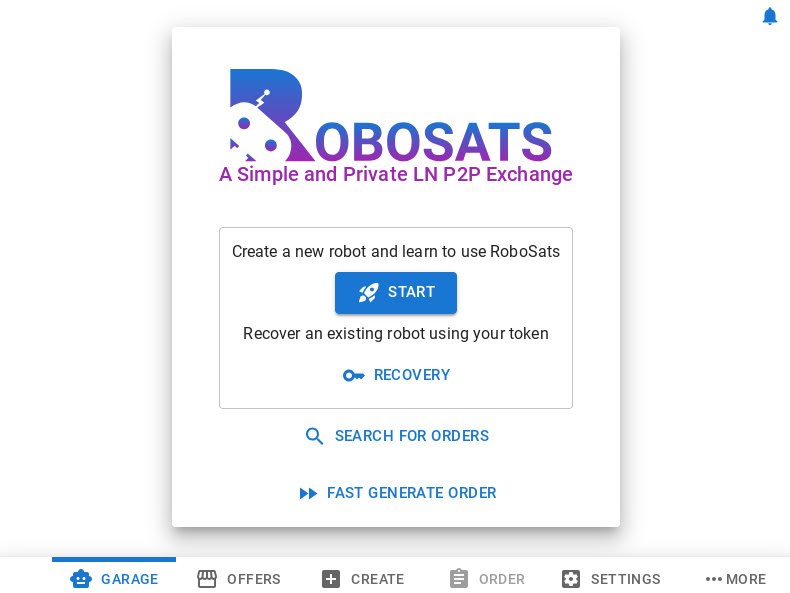
Open the Ammanaya coordinator in Tor Browser and click START to create a new robot.
ammannjgzybw4qm2odmci7xgolh5grzijidacjxose5tthm375dcopad.onion
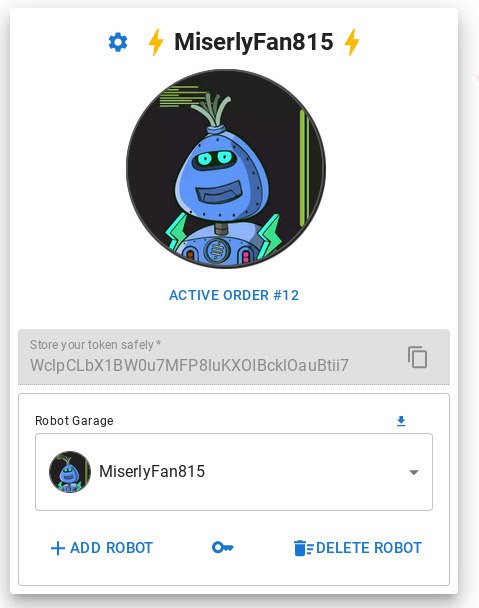
Your robot is generated automatically. Press the copy icon next to the token to save it securely.
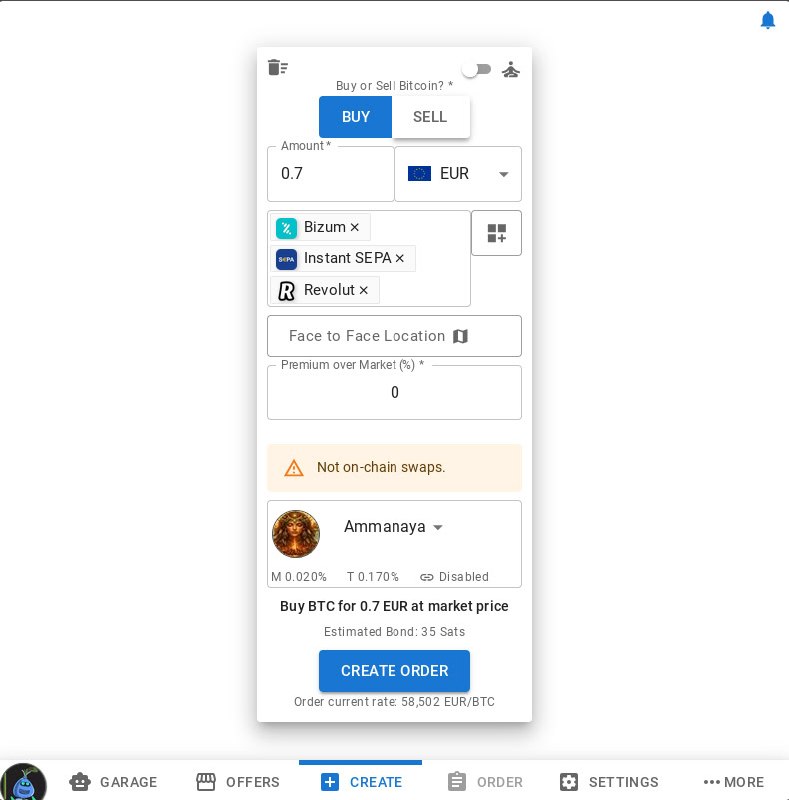
Go to the CREATE tab. Select BUY, enter the amount in your currency (e.g. EUR), choose your preferred payment methods, and set the premium (0% = market price).
Make sure Ammanaya is selected as the coordinator, then click CREATE ORDER.
A Lightning hold invoice will appear. Pay it with your Lightning wallet to lock your fidelity bond (3% of the trade amount). This guarantees you're a serious trader.
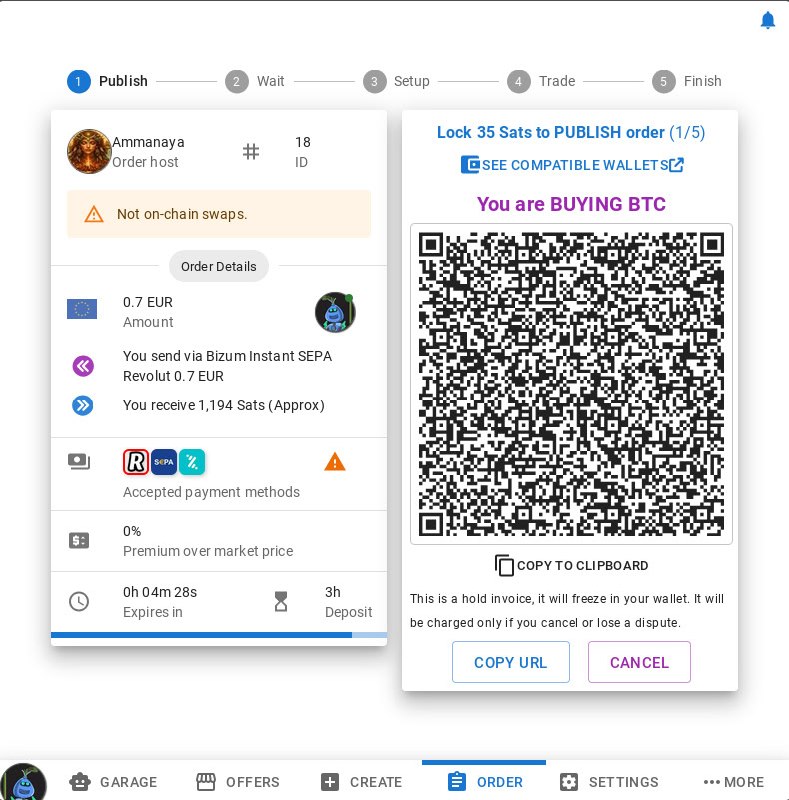
Your order is now public in the order book. Wait for a seller to take it. You'll receive a notification when someone matches with your order.
If no one takes your order before it expires, your bond is automatically returned — no action needed.
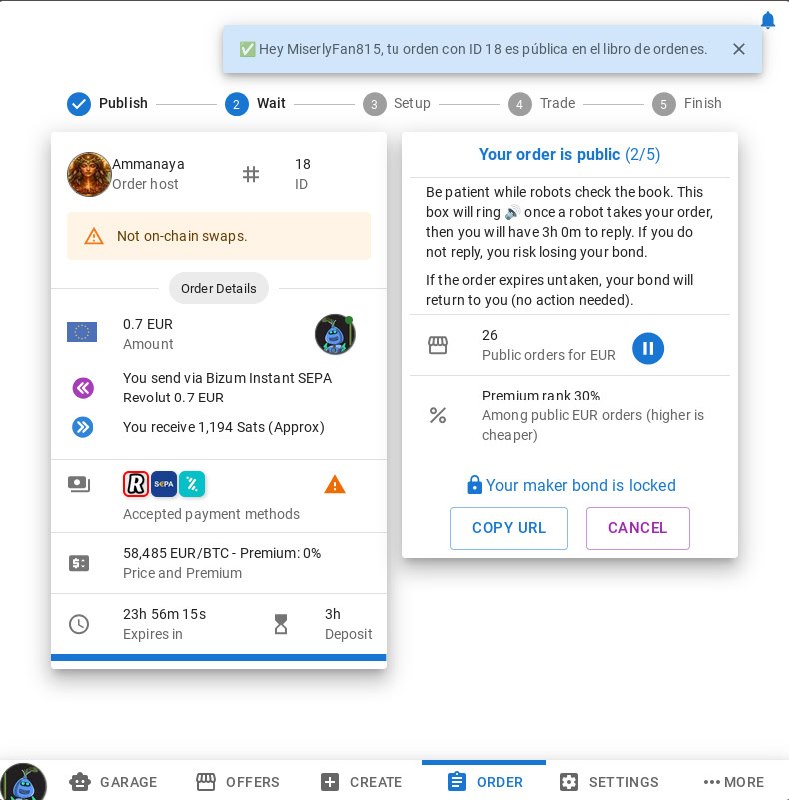
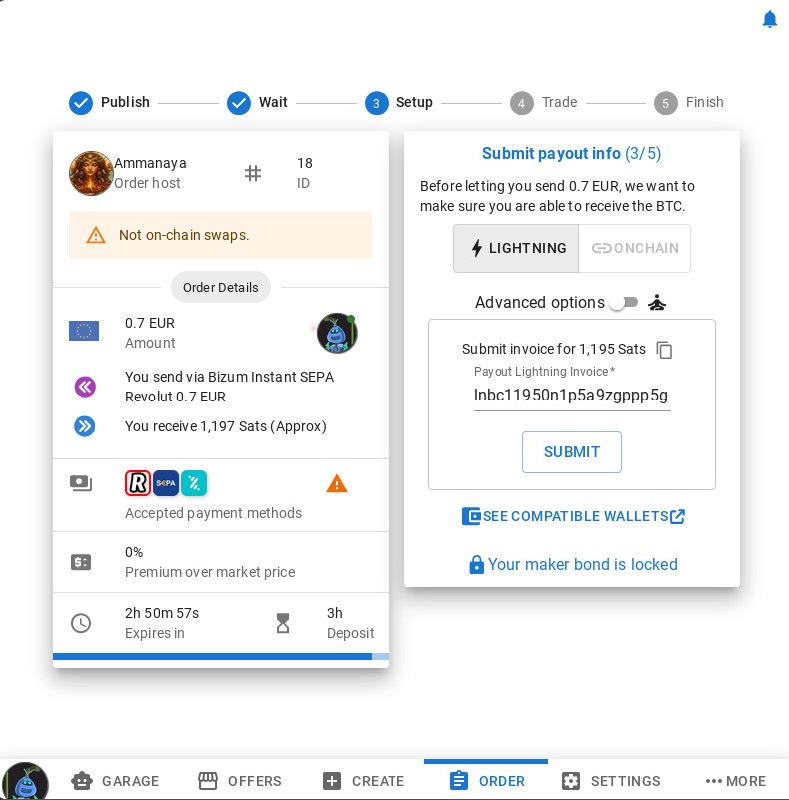
A seller has taken your order! Now submit a Lightning invoice from your wallet for the amount of sats you'll receive. This is where your purchased Bitcoin will be sent.
Choose LIGHTNING, paste your invoice, and click SUBMIT.
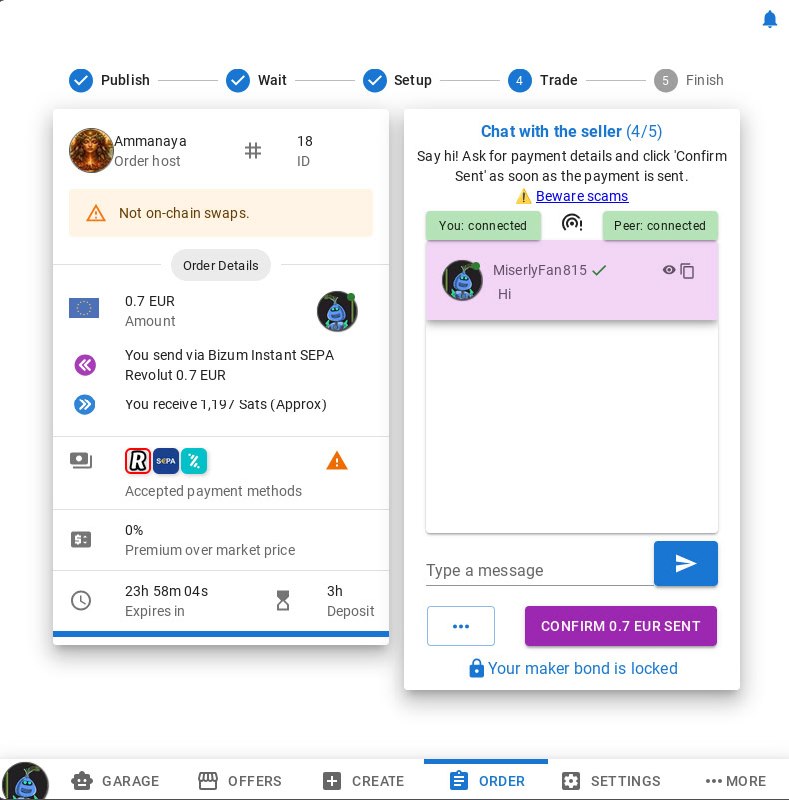
The encrypted trade chat opens. Say hi and ask the seller to specify their payment details (e.g. phone number for Bizum, Revolut username, etc.).
Wait for the seller to choose a payment method and share their details.
Send the fiat payment to the seller using the agreed method. Only click "Confirm Sent" once you are absolutely sure the payment has been completed.
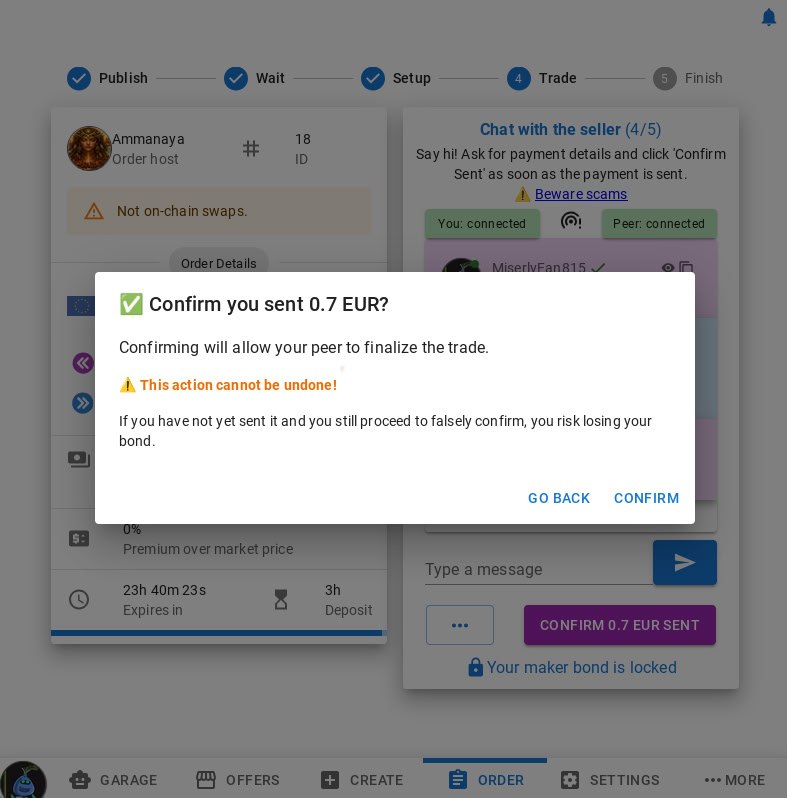
Wait for the seller to confirm they received your fiat payment. Once confirmed, the escrowed sats are automatically released to your Lightning wallet.
Your fidelity bond is returned. Trade complete! 🎉
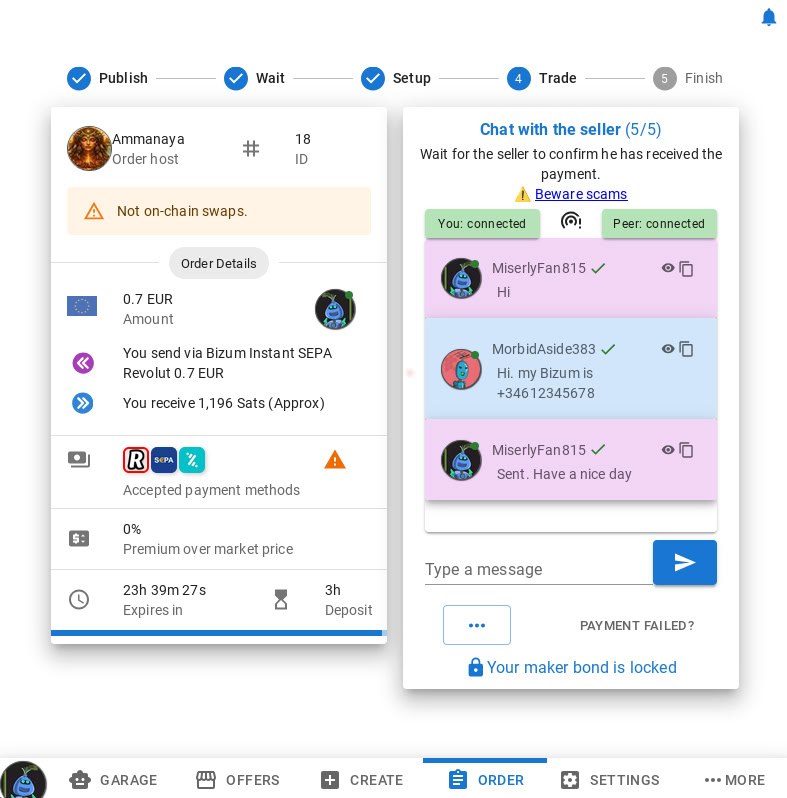
After the trade, you'll be asked to rate the platform and the coordinator. Your feedback helps improve the RoboSats ecosystem.
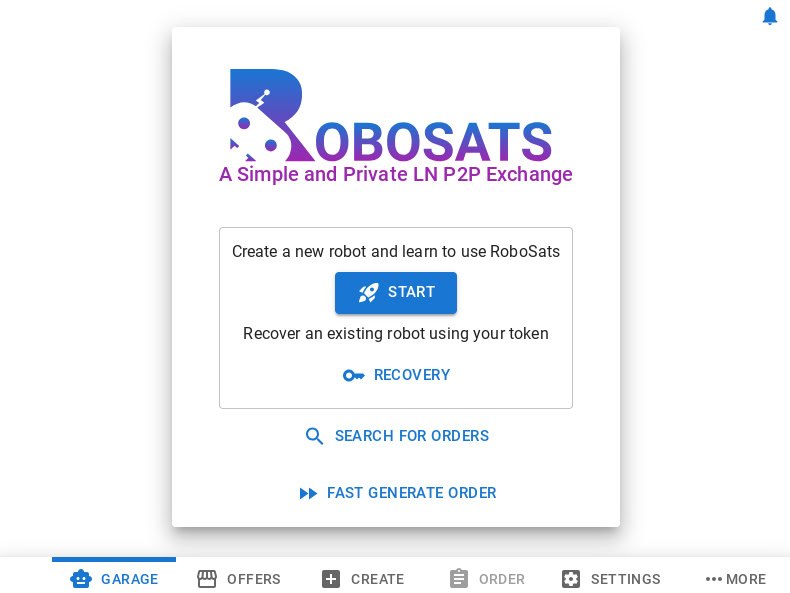
Open the Ammanaya coordinator in Tor Browser and click START to begin.
ammannjgzybw4qm2odmci7xgolh5grzijidacjxose5tthm375dcopad.onion
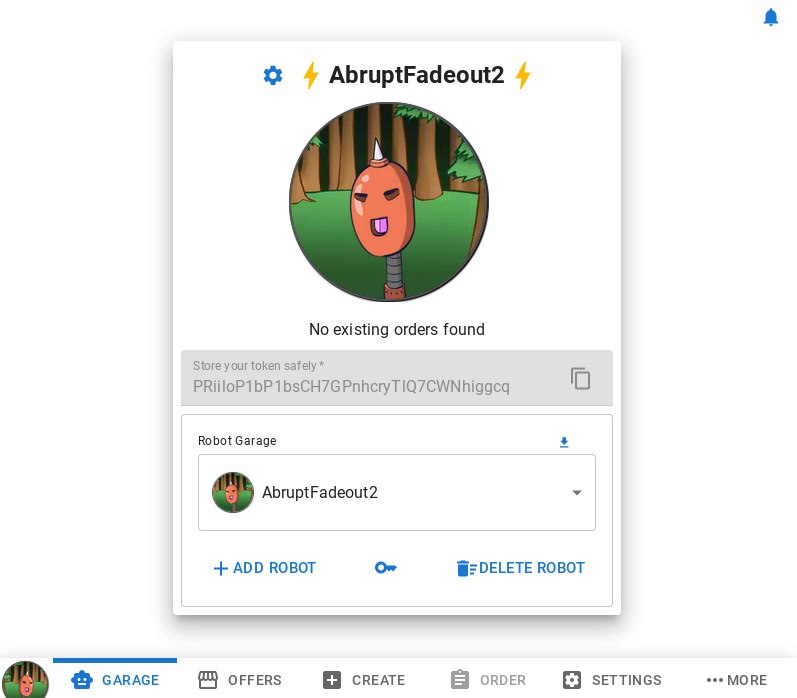
Your robot is generated automatically. Press the copy icon next to the token to save it securely.
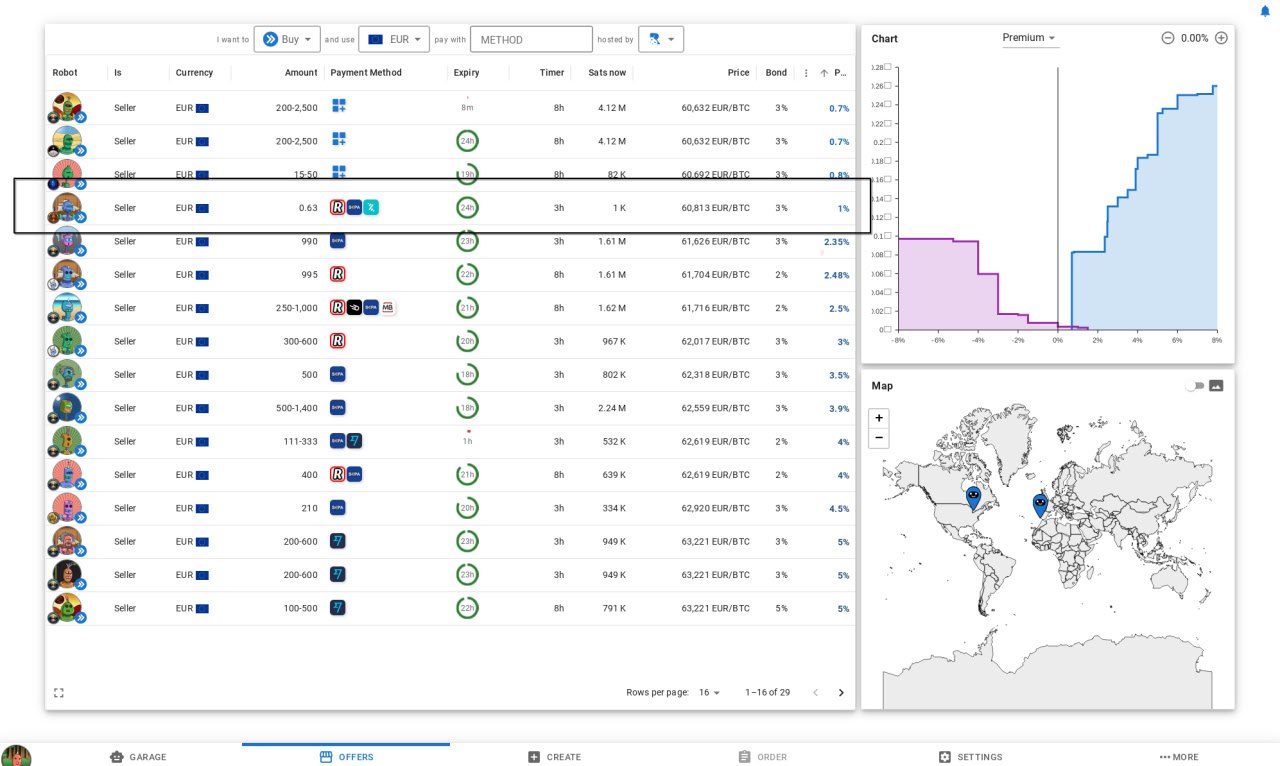
Go to the OFFERS tab. Browse the order book and look for SELL orders on the Ammanaya coordinator (identified by the Ammanaya logo). Click on the order you want to take.
Review the order details: amount, premium, accepted payment methods, and expiry time. When satisfied, press TAKE ORDER.
Pay the fidelity bond (3%) via Lightning hold invoice to prove you're a serious buyer.
Submit a Lightning invoice from your wallet for the amount of sats you'll receive. This is where your purchased Bitcoin will be sent when the trade completes.
Wait for the seller to lock their trade collateral (the sats you're buying). Once they do, the trade chat will open.
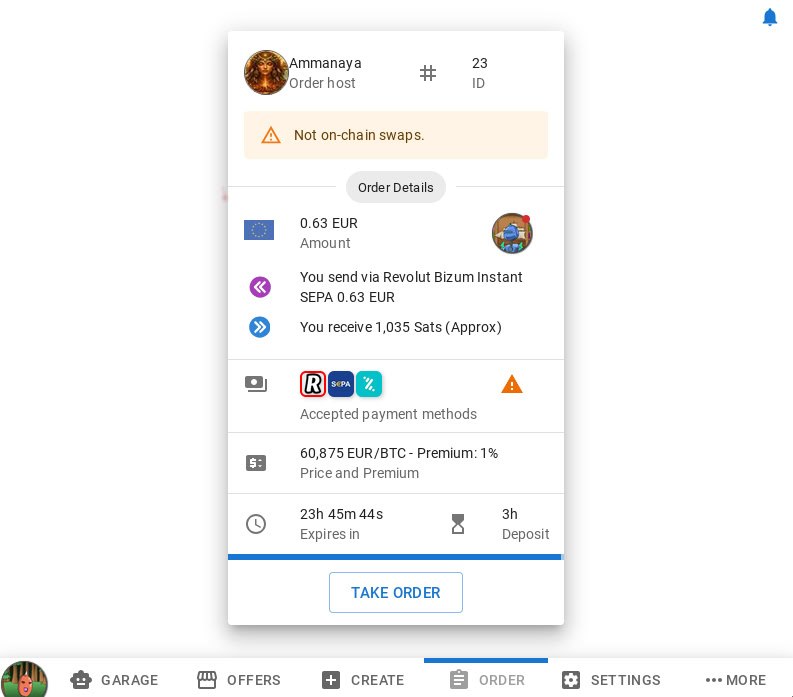
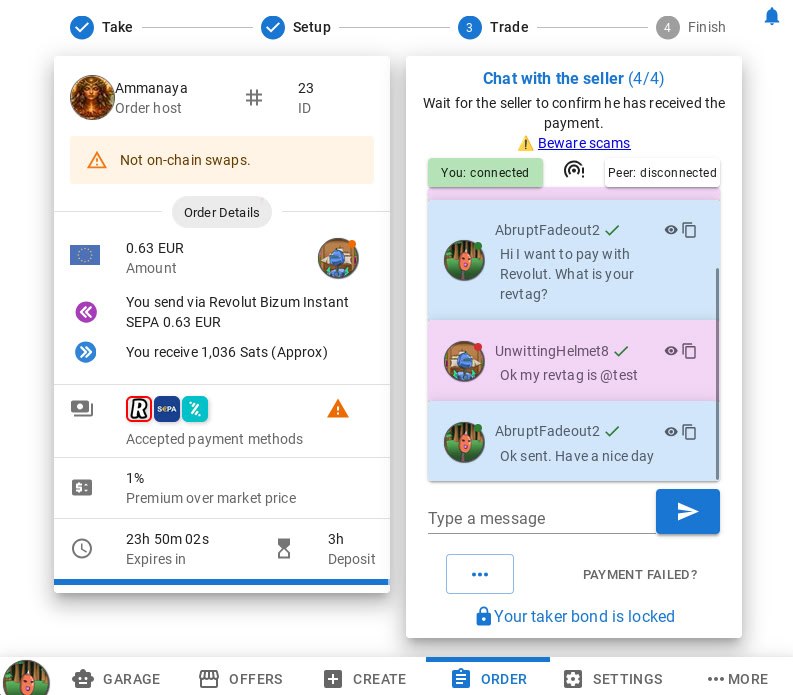
The encrypted trade chat opens. Say hi, choose your preferred payment method from the seller's listed options, and ask for their payment details (Revolut tag, Bizum number, etc.).
As the taker, you choose which payment method to use.
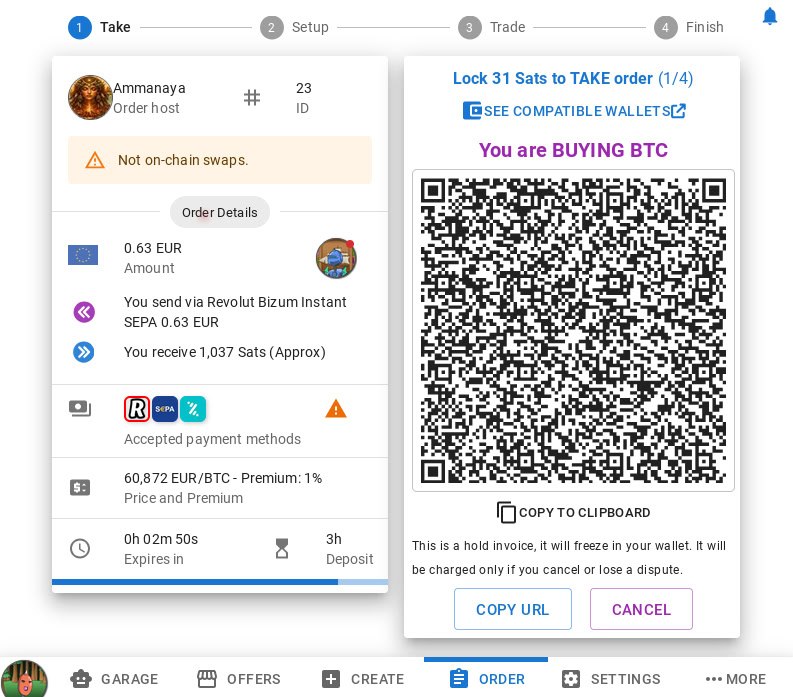
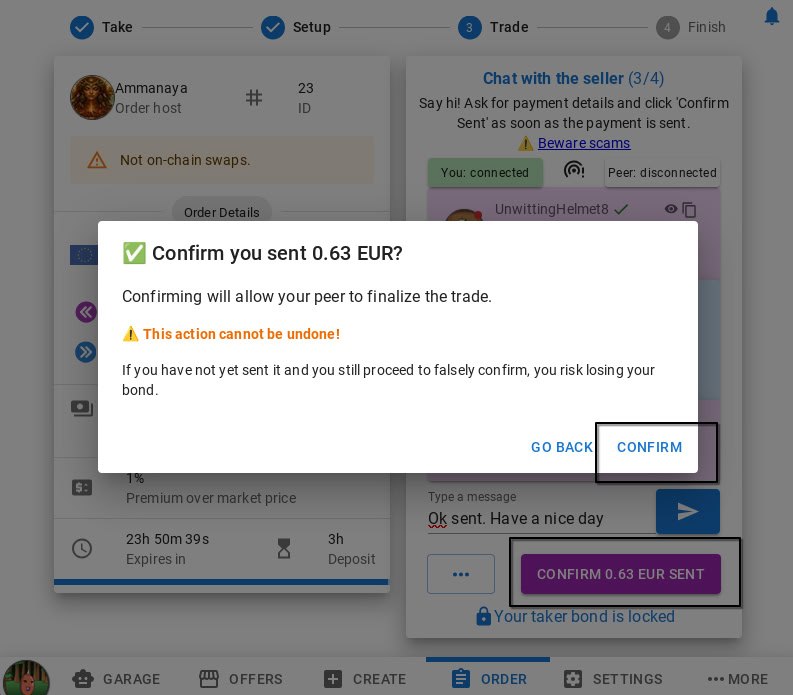
Send the fiat payment to the seller using the agreed method. Only click "Confirm Sent" once you are absolutely sure the payment has been completed successfully.
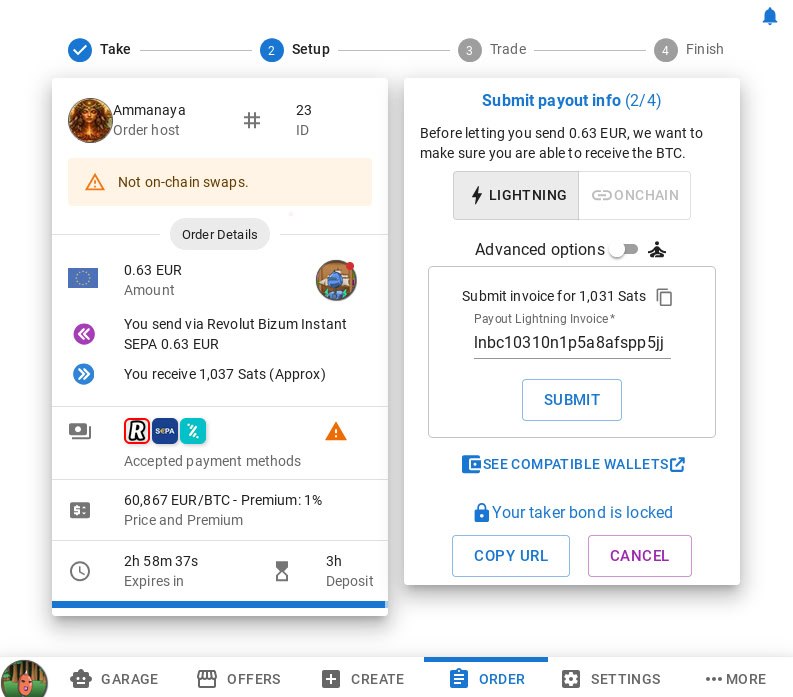
Wait for the seller to confirm they received your fiat payment. Once confirmed, the escrowed sats are automatically released to your Lightning wallet.
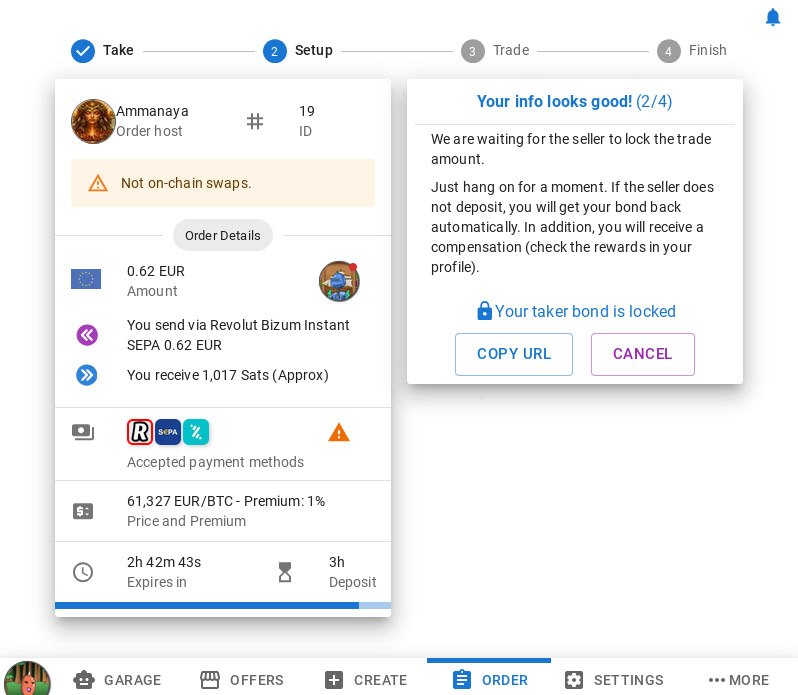
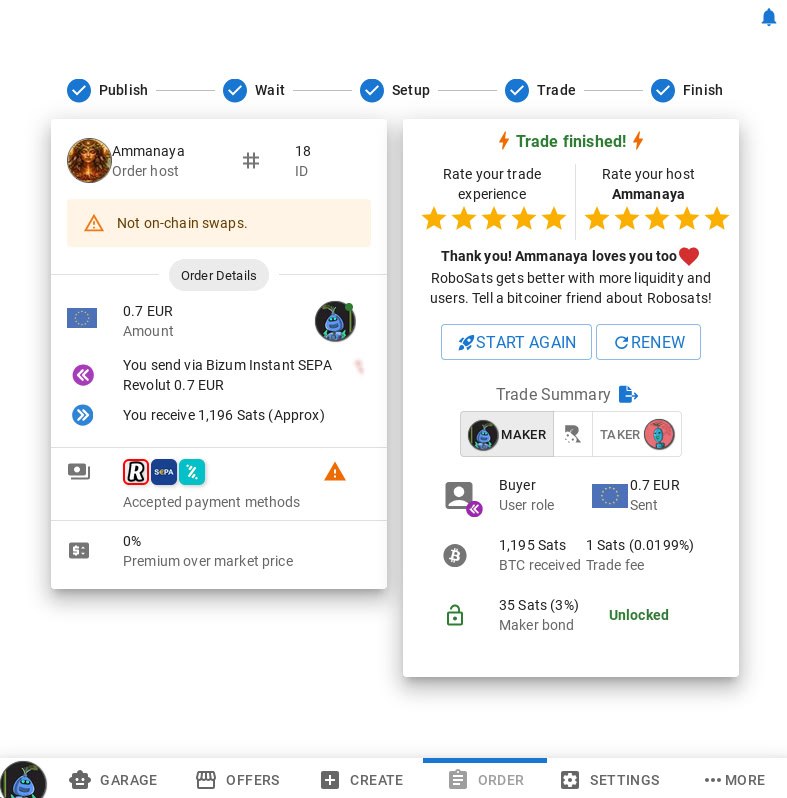
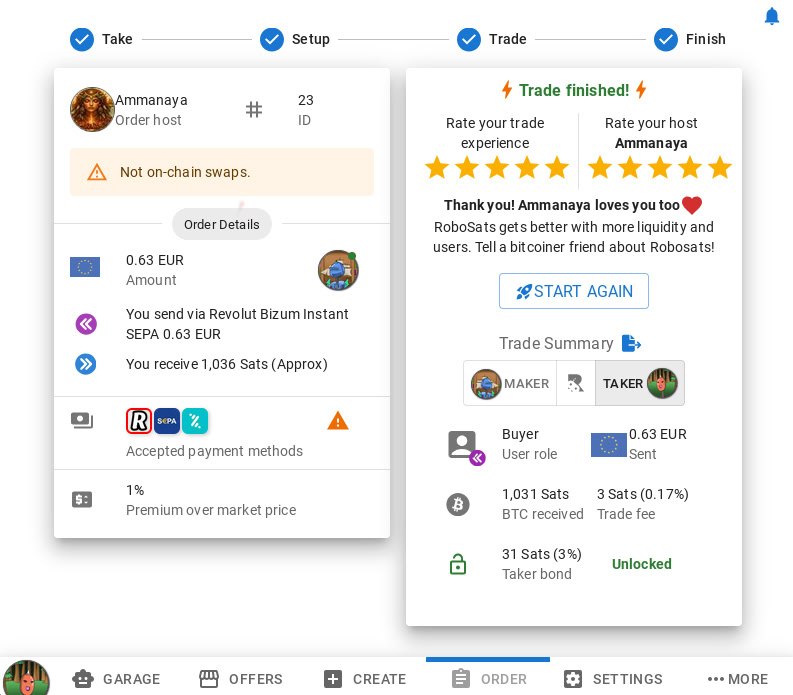
Trade complete! 🎉 Your sats arrive in your Lightning wallet and your bond is returned. Rate your experience with RoboSats and the Ammanaya coordinator.
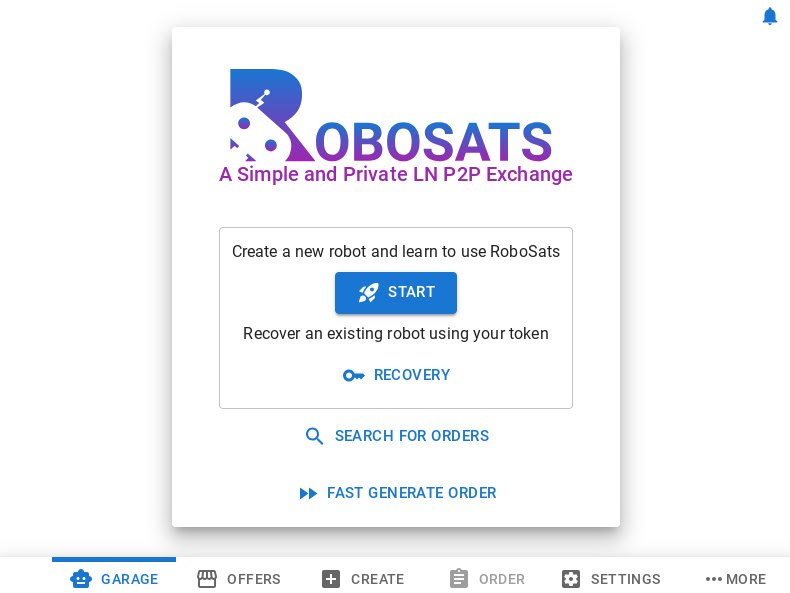
Open the Ammanaya coordinator in Tor Browser and click START to begin.
ammannjgzybw4qm2odmci7xgolh5grzijidacjxose5tthm375dcopad.onion
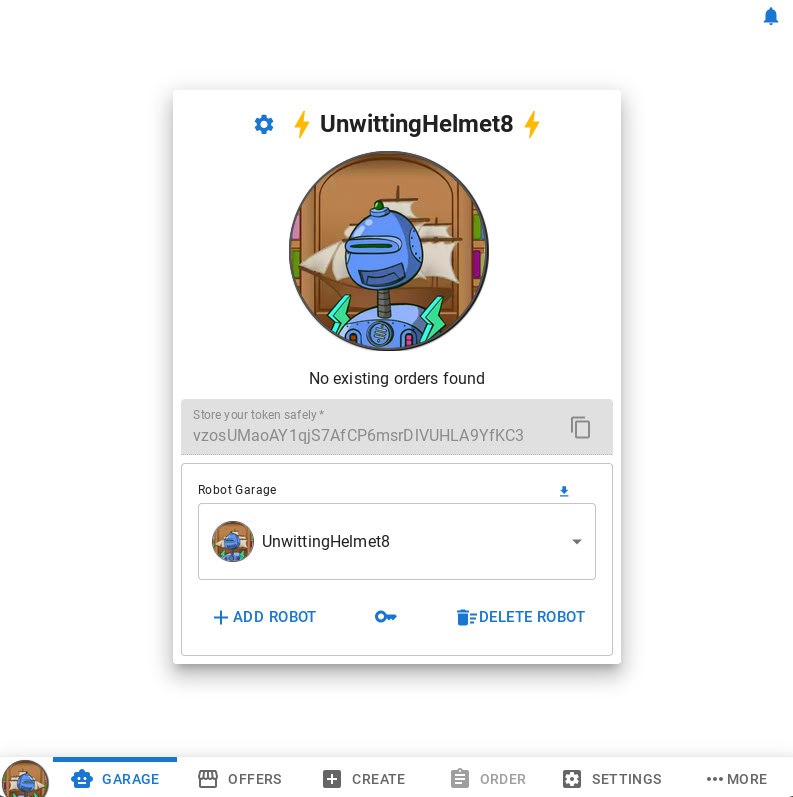
Your robot is generated automatically. Press the copy icon next to the token to save it securely.
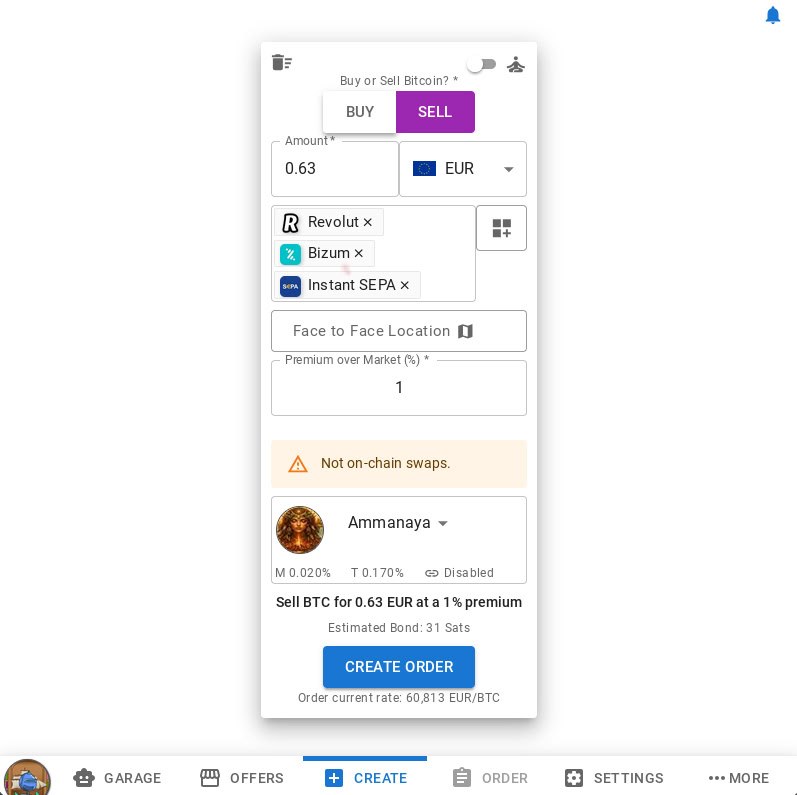
Go to the CREATE tab. Select SELL, enter the amount, choose your accepted payment methods (Revolut, Bizum, Instant SEPA, etc.), and set the premium.
Make sure Ammanaya is selected as the coordinator, then click CREATE ORDER.
Pay the fidelity bond (3%) via Lightning hold invoice. This guarantees you're a serious trader.
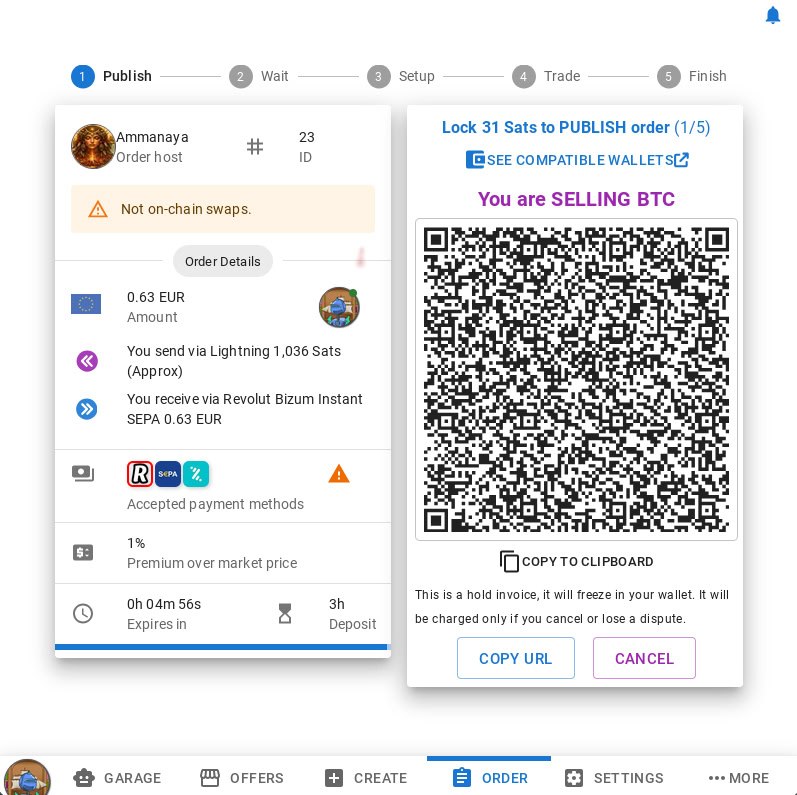
Now lock the full trade amount (the sats you're selling) via another Lightning hold invoice. These sats will be held in escrow and released to the buyer once you confirm fiat received.
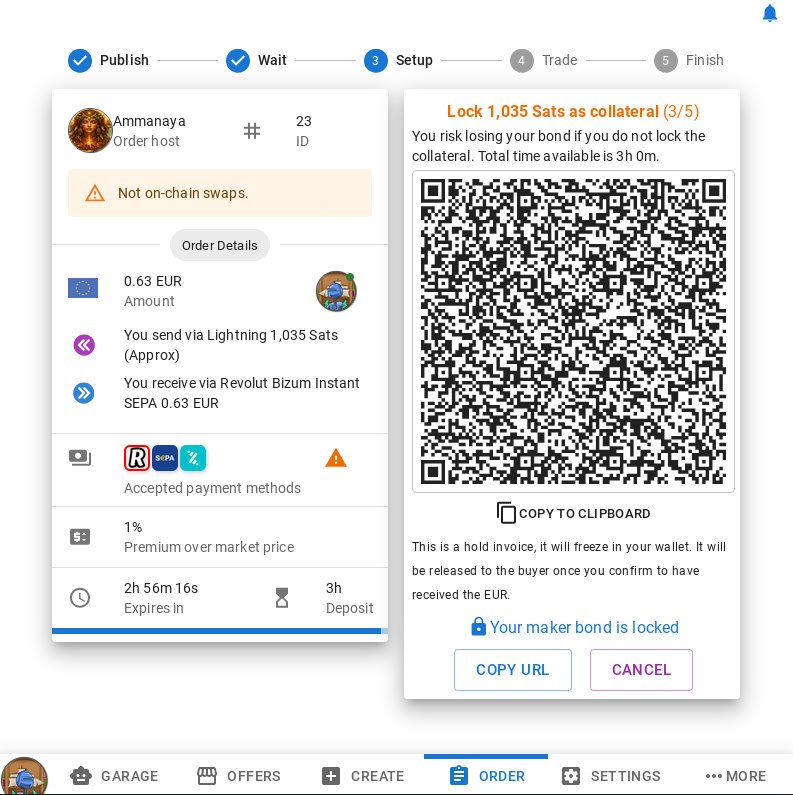
Your order is now public in the order book. Wait for a buyer to take it. You'll receive a notification when someone matches.
If no one takes your order before it expires, your bond and collateral are automatically returned — no action needed.
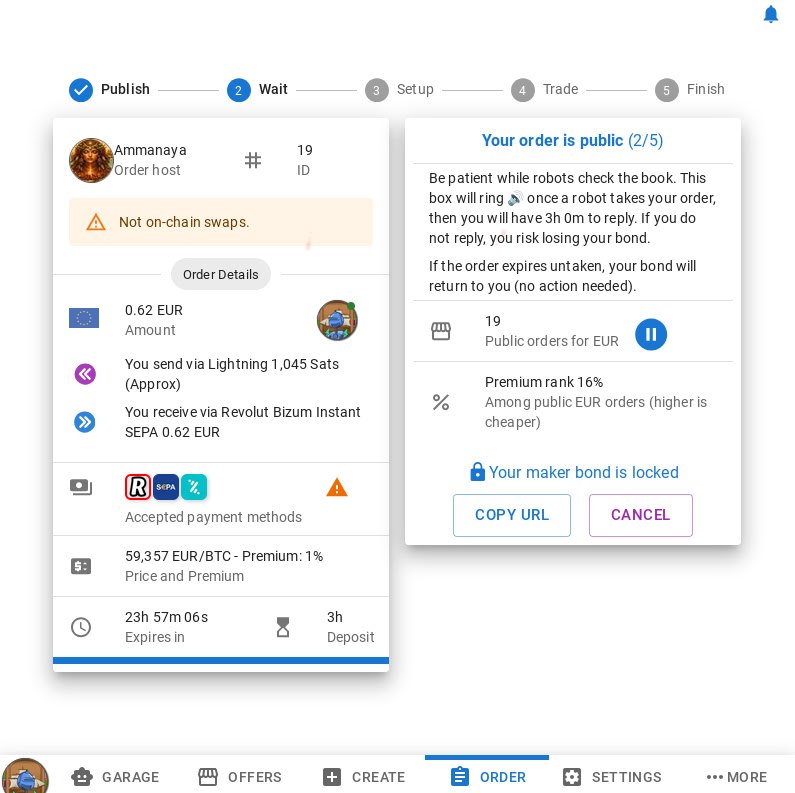
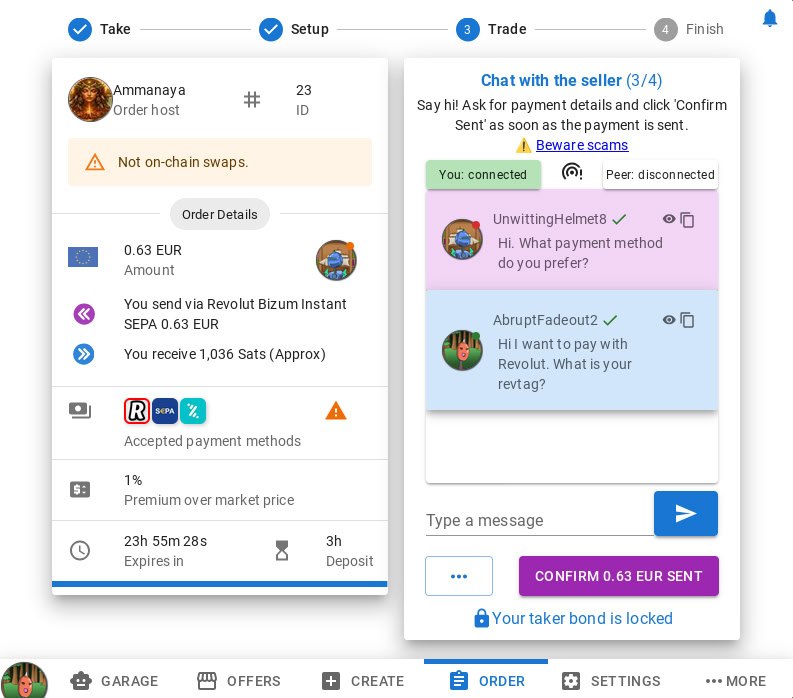
A buyer has taken your order! The encrypted trade chat opens. Say hi and ask which payment method they prefer from the ones you offered.
The taker always chooses the payment method among the options you listed.
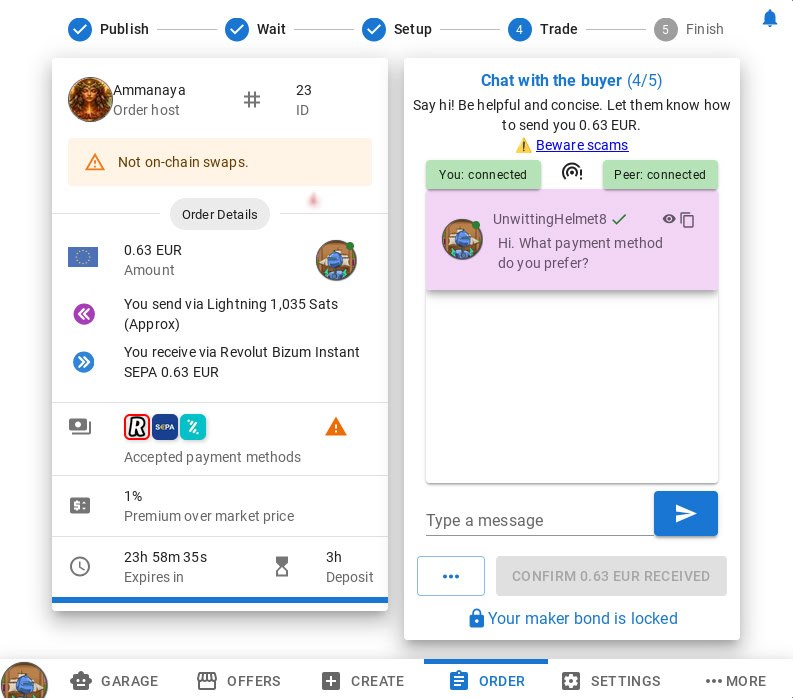
Once the buyer tells you their preferred method, share your payment details (e.g. Revolut tag, Bizum phone number, etc.) and wait for them to send the fiat.
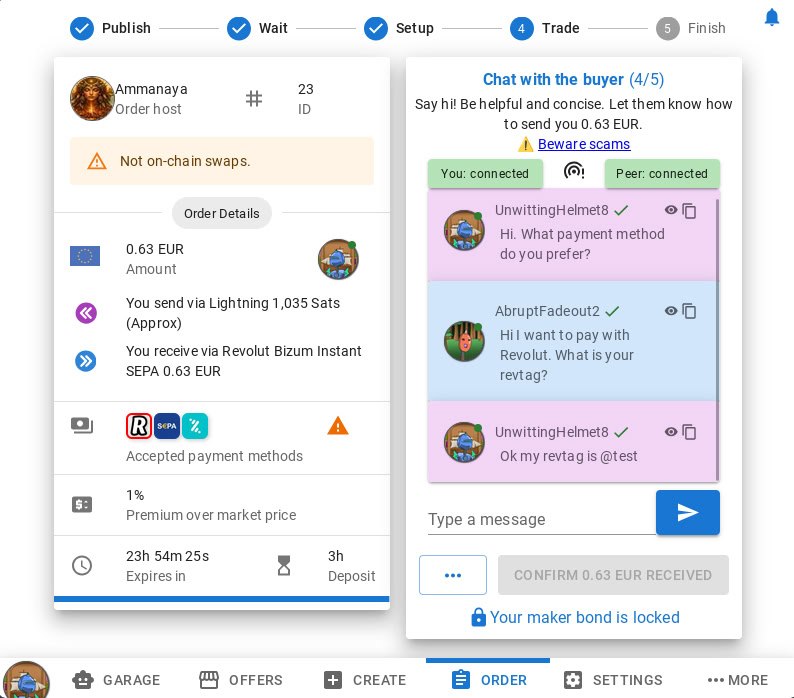
When the buyer notifies they've sent the payment, the "Confirm Received" button activates. Verify the fiat has arrived in your account, then confirm to release the sats.
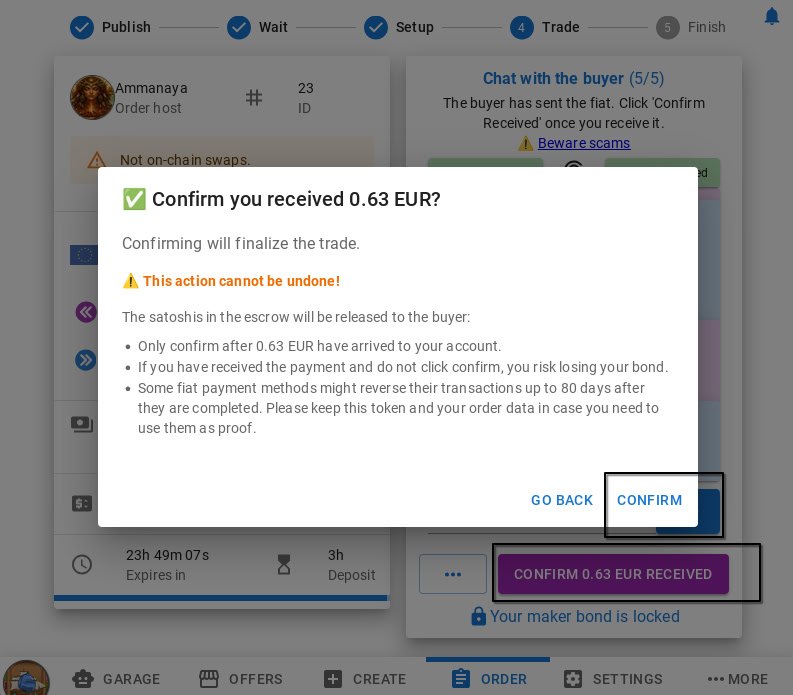
Trade complete! 🎉 Your bond is unlocked and the sats have been sent to the buyer. Rate your experience with RoboSats and the Ammanaya coordinator.
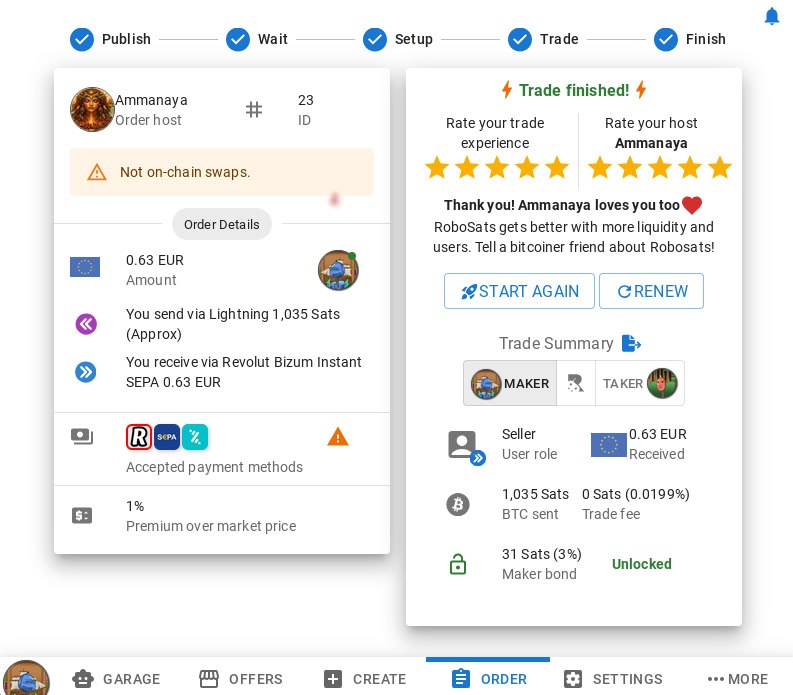
Open the Ammanaya coordinator in Tor Browser, click START and your robot will be generated. Press the copy icon to save your token securely.
ammannjgzybw4qm2odmci7xgolh5grzijidacjxose5tthm375dcopad.onion
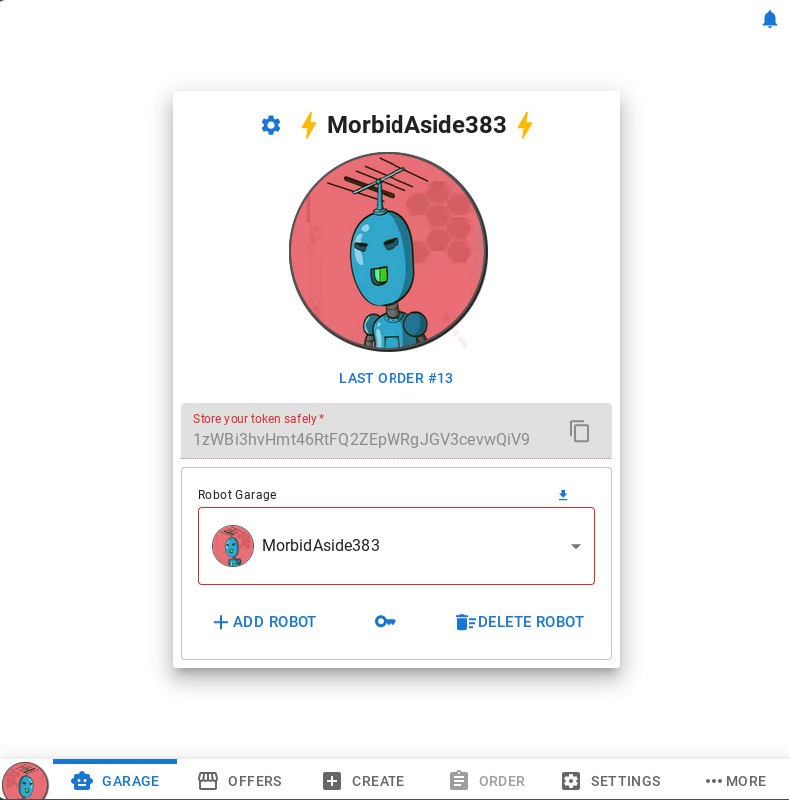
Go to the OFFERS tab. Browse the order book and look for BUY orders (these are buyers looking for sats — you'll be selling to them). Filter by the Ammanaya coordinator (look for the circular Ammanaya logo).
Check the currency, amount, payment methods, premium, and expiry time to find the best match.
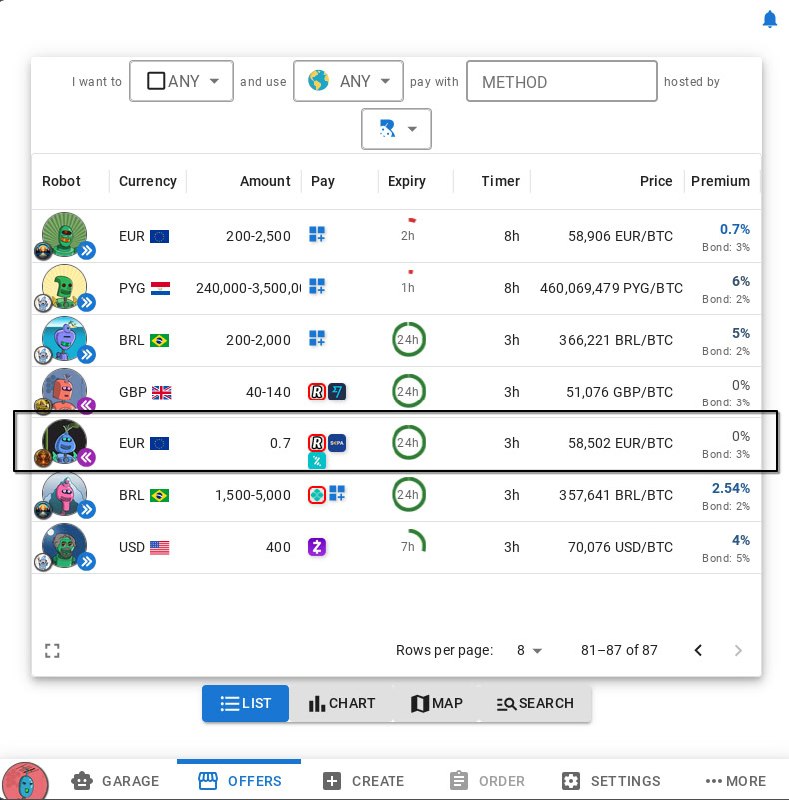
Review the order details carefully: amount, premium, accepted payment methods, and expiry time. Make sure you're comfortable with the terms.
When ready, press TAKE ORDER.
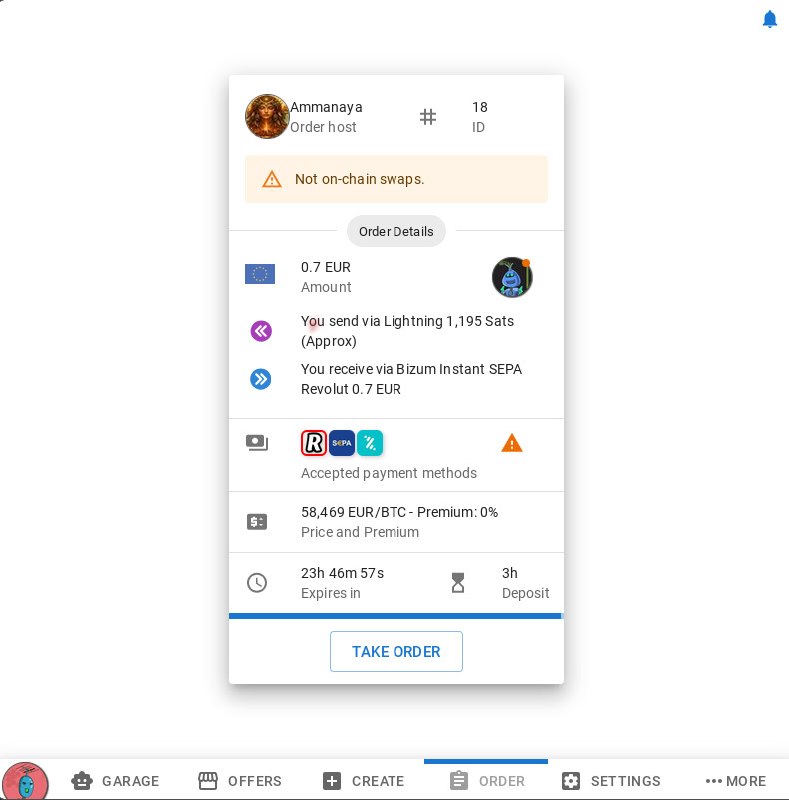
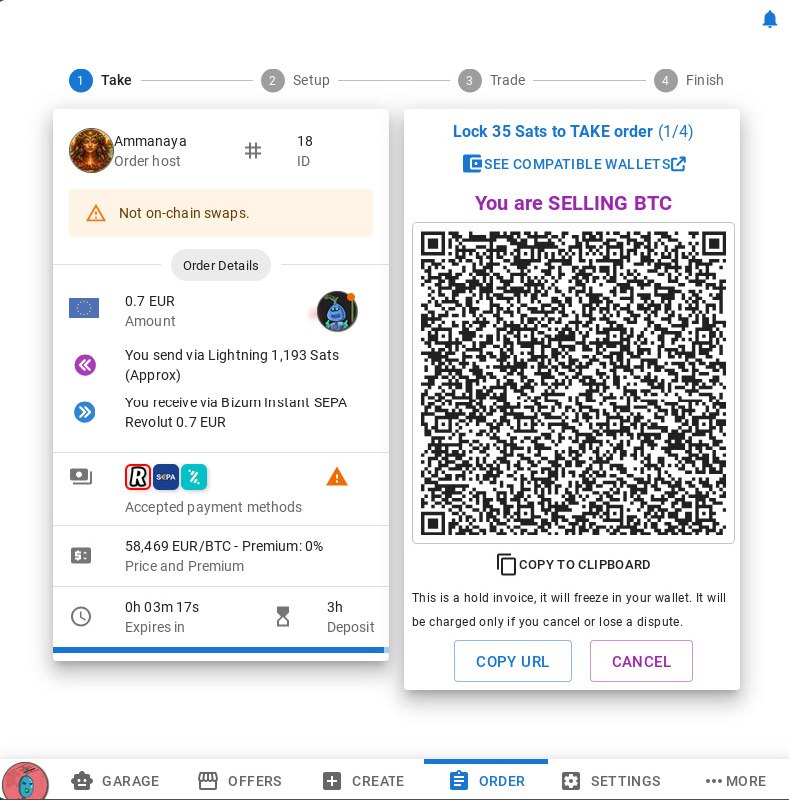
Pay the fidelity bond (3%) via Lightning hold invoice. This guarantees you're a serious trader.
Now lock the full trade amount (the sats you're selling) via another Lightning hold invoice. These sats will be held in escrow and released to the buyer once you confirm fiat received.
If the buyer doesn't cooperate, your collateral and bond are returned automatically, plus you receive a compensation.
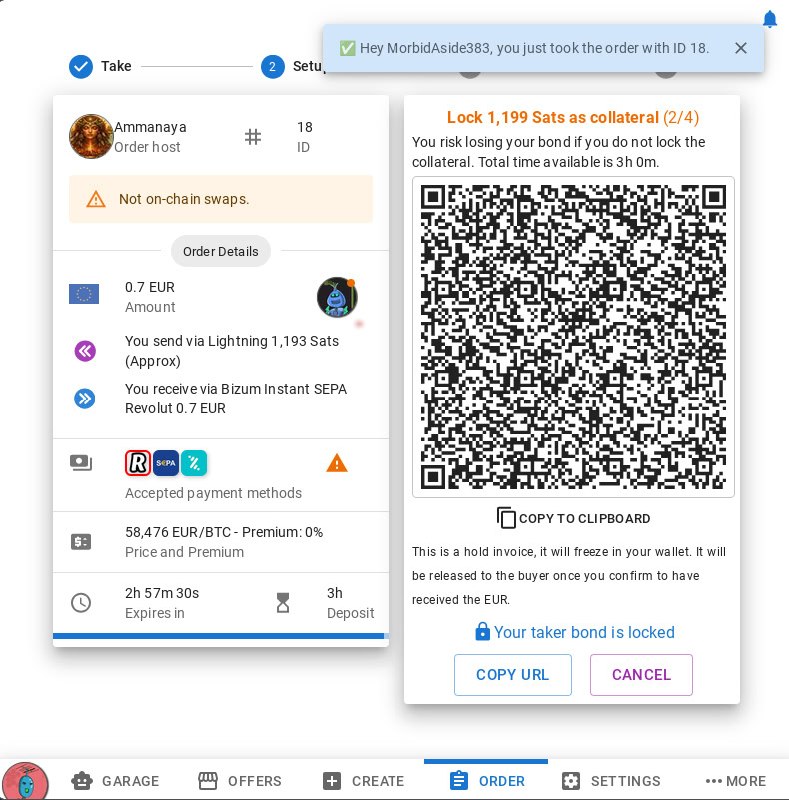
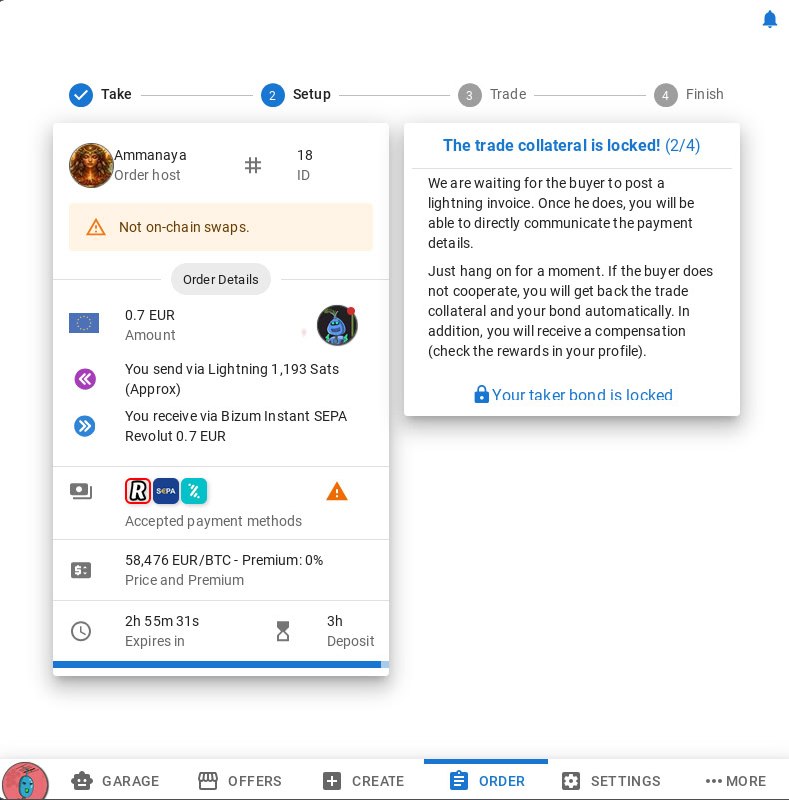
Wait for the buyer to submit their Lightning payout invoice. Once they do, the trade chat will open and you can communicate directly.
Hang tight — if the buyer doesn't cooperate, your funds are returned automatically.
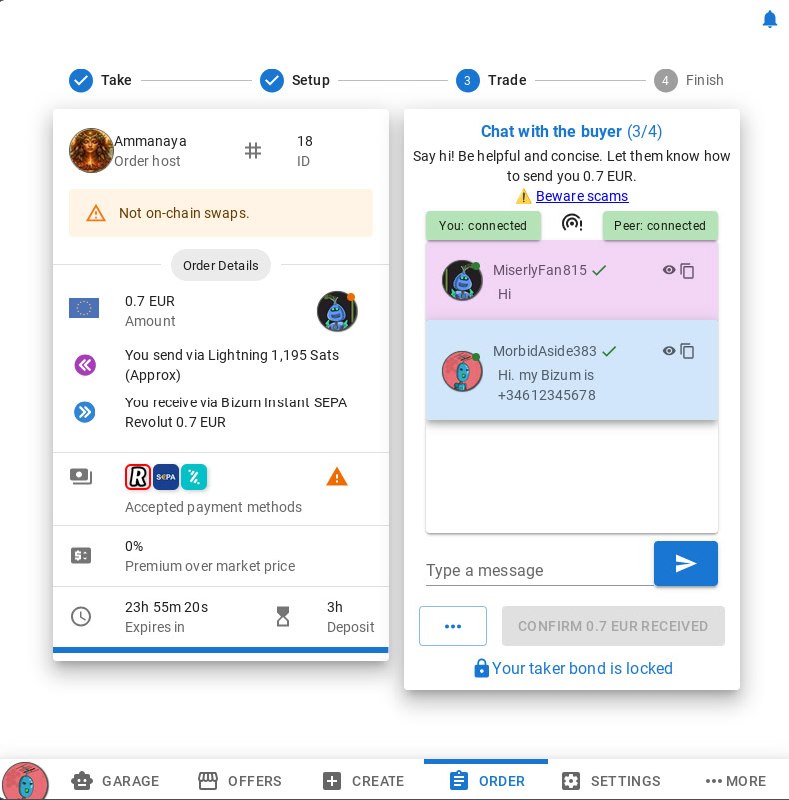
The encrypted trade chat is open. Say hi, choose your preferred payment method from the available options, and share your payment details (e.g. your Bizum phone number, Revolut username, etc.).
Wait for the buyer to send you the fiat payment.
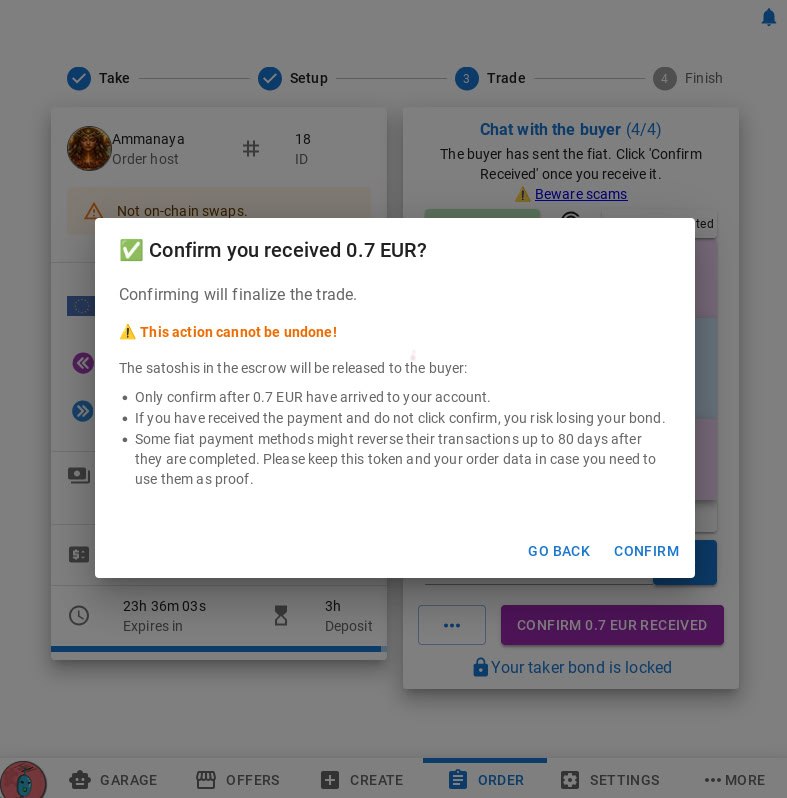
Once you have verified that the fiat payment has arrived in your account, click "Confirm Received". This will release the escrowed sats to the buyer.
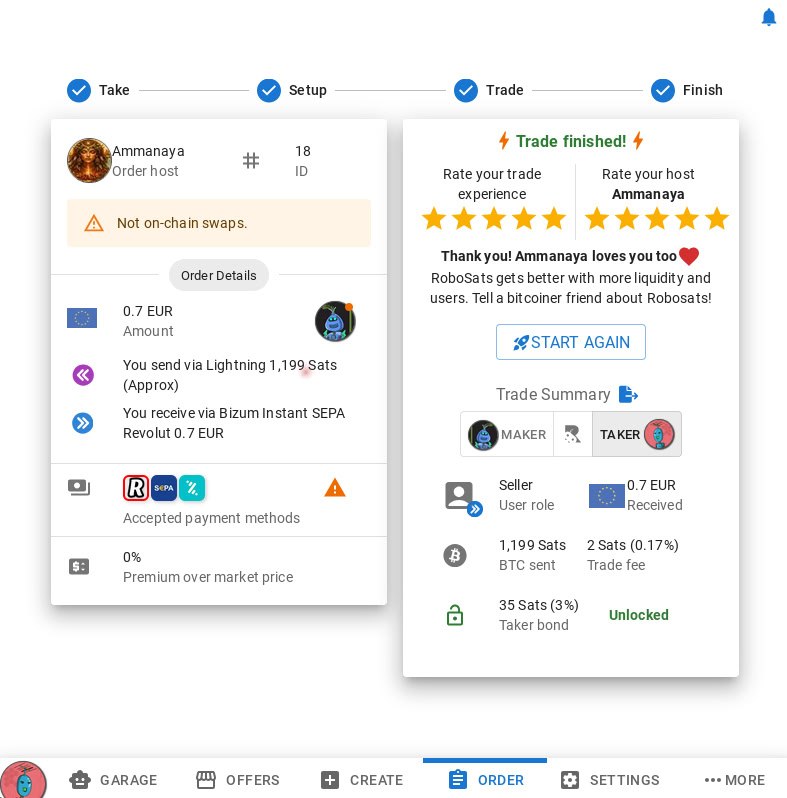
Trade complete! 🎉 Your bond is unlocked and the sats have been sent to the buyer. Rate your experience with RoboSats and the Ammanaya coordinator.
🚧
Coming Soon
This guide is being prepared. Check back soon!
🚧
Coming Soon
This guide is being prepared. Check back soon!